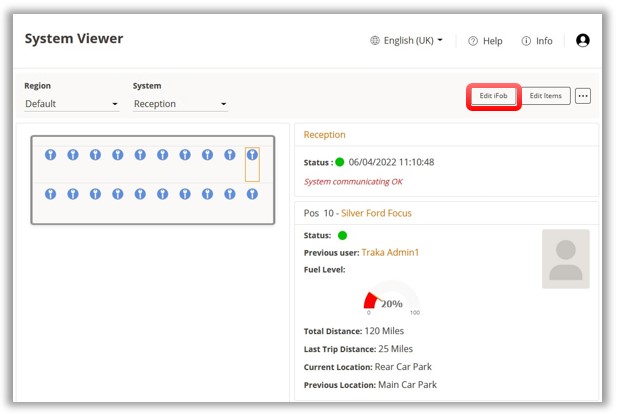
In the System Viewer, select
the item that requires editing then click on ‘Edit iFob’.
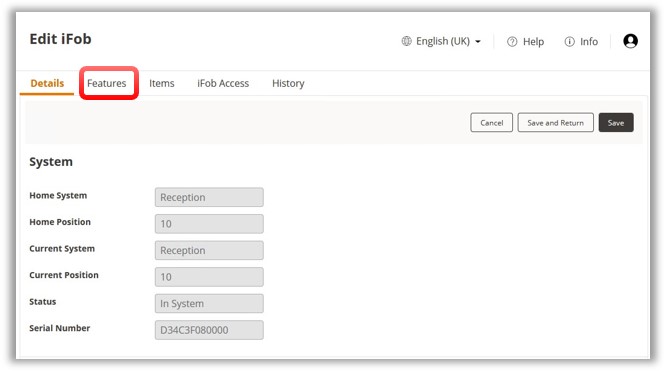
At the ‘Edit iFob’ screen,
click on the Features tab.
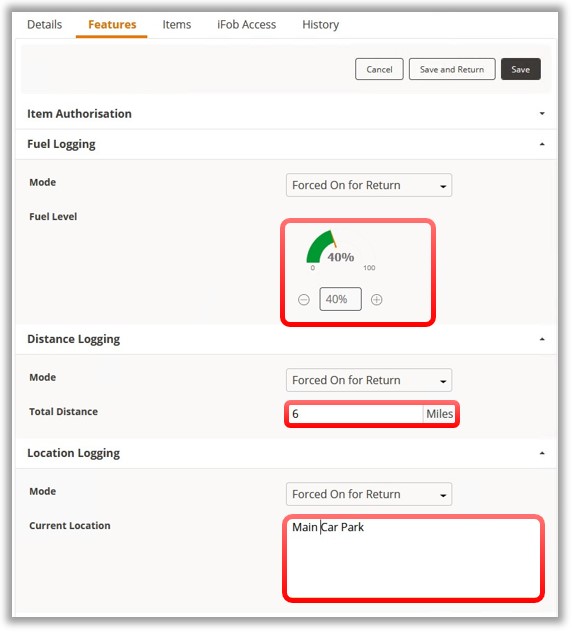
Depending on which features
have been enabled, at the ‘Features’ screen, a user can edit the values
for the Fuel, Distance and Location to suit the new vehicle.
NOTE:
The
Fuel Level can only be adjusted using the Plus and Minus buttons.
Once completed, click ‘Save
and Return’.
NOTE: When
an override change is made in this way through TrakaWEB, the name
of the user who made the change will not be visible in the System
Viewer report. This is because it isn’t currently possible for TrakaWEB
to know which user made the edit. Whereas Traka Touch can determine
users by their login details.