NOTE: This section only applies if your system is configured to allow faults to be logged and cleared at the Traka Touch system. Refer to the section Enabling Fault Logging for more details.
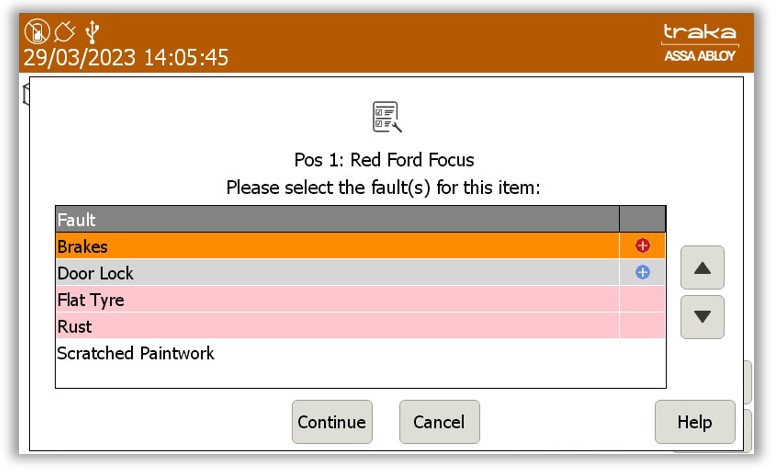
If a faulty item is taken out of the system by an authorised person and then returned (perhaps after some repairs have been carried out), the system will show the fault list with any outstanding faults indicated at the top. The ‘Does the item have any faults’ question will not be asked in this case.
You then have three options as follows:
Clearing: Existing faults can then be cleared by just clicking them in the list. For each fault deselected, the fault list icon will include a green tick to indicate its cleared status. When the ‘Continue’ button is pressed you will be asked to enter optional notes for each of the cleared faults in turn. See below for details.
Adding: If, for example, more faults are found when physically repairing a reported fault, more faults can be added by selecting additional rows. For each fault added, the system will generate additional ‘Fault Entered’ events and create new Outstanding Fault records.
No change: Accept that the existing faults have not changed by doing nothing else except pressing the ‘Continue’ button.
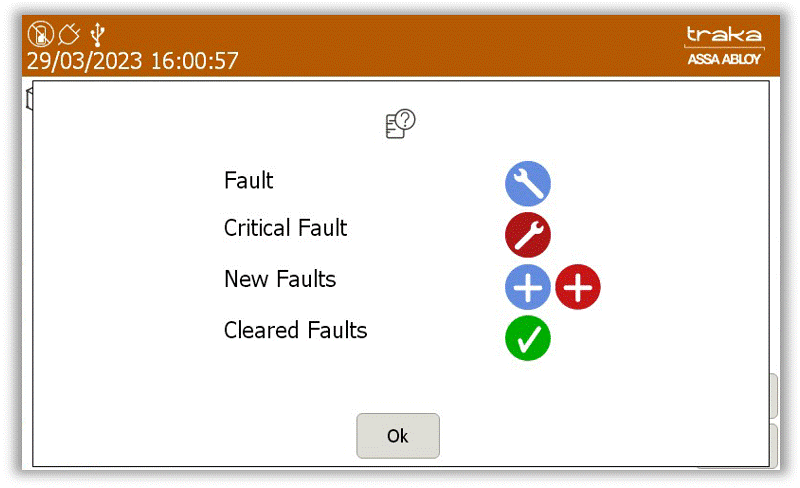
Clicking the ‘Help’ button will present you with the following screen:
For option 1, the below screen is presented for each cleared fault allowing you to enter optional repair notes. Any existing fault notes that may have been entered from TrakaWEB will also be displayed here.
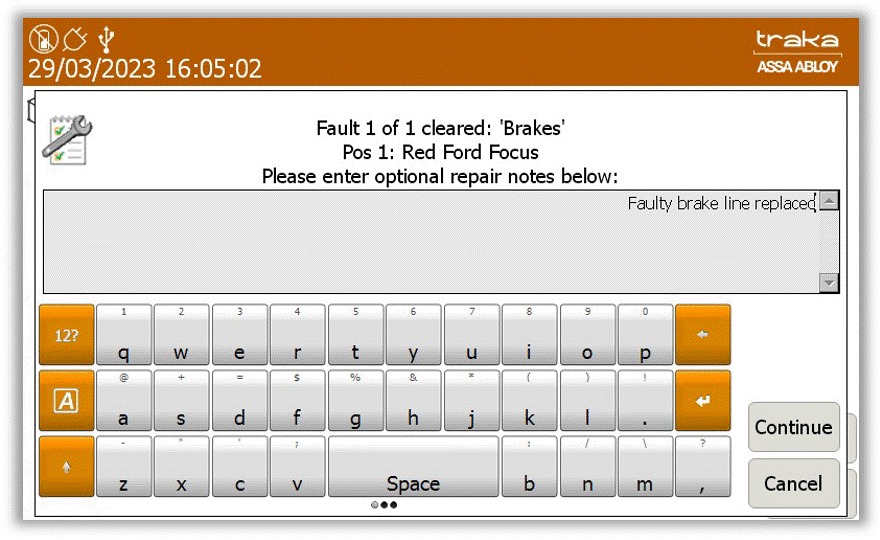
Clicking ‘Apply All’ will assign the same entered notes to all of the cleared faults.
Clicking ‘Continue’ will save the entered notes and either move on to the next cleared fault, or continue to the next feature questions (if applicable).
If ‘Cancel’ is pressed, the notes being edited will not be saved, the displayed fault and any remaining faults selected to be cleared will not be cleared and will remain on the item. If ‘Cancel’ has been pressed by mistake, remove and return the item(s) again to repeat the process.
Once finished, a ‘Fault Cleared’ event will be generated for each one, and the entered notes will be updated in the appropriate fault records in TrakaWEB.